Haag Streit LENSTAR® - Program Functions
General Preferences
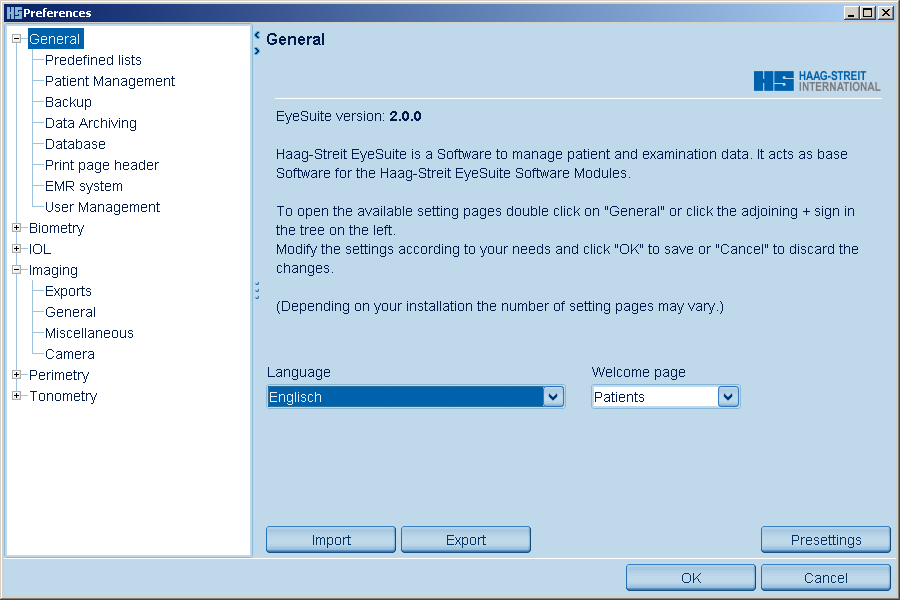
Tools -> Preferences -> General
Click on images to enlarge for better viewing.
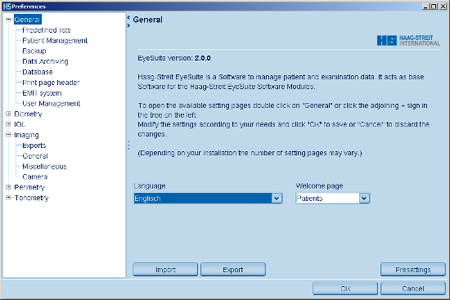
This and the following sections describe the general software settings of EyeSuite. Extension-specific settings are described in the respective extensions. The General function allows you to select the application language and point of entry. The screen showing the patients list is selected as the default point of entry.
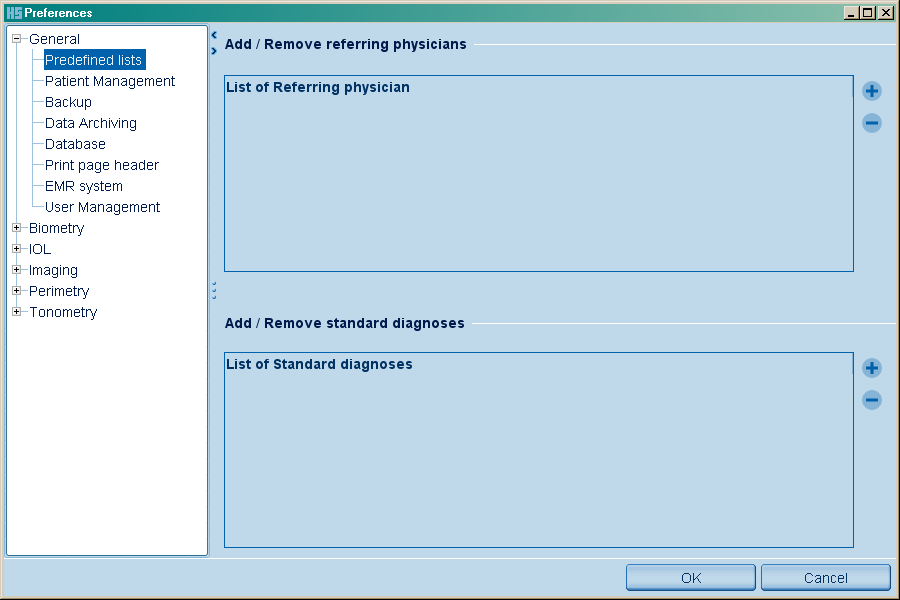
Predefined Lists
You can enter in the list of referring doctors the addresses of the partners who refer patients to you. This information can be assigned to the patient under Examination Data.

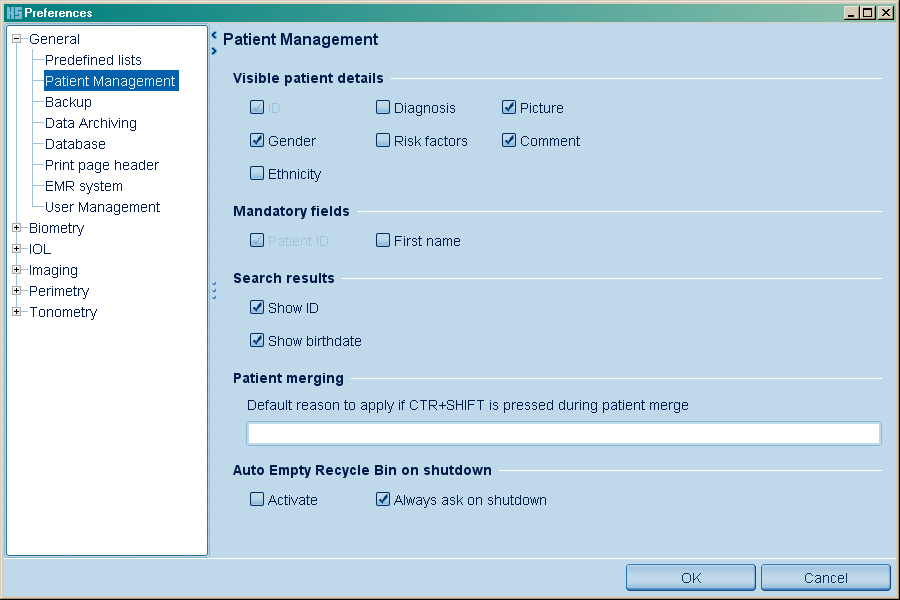
Patient Management
This allows you to set the displayed and mandatory entry fields for the patient screen.

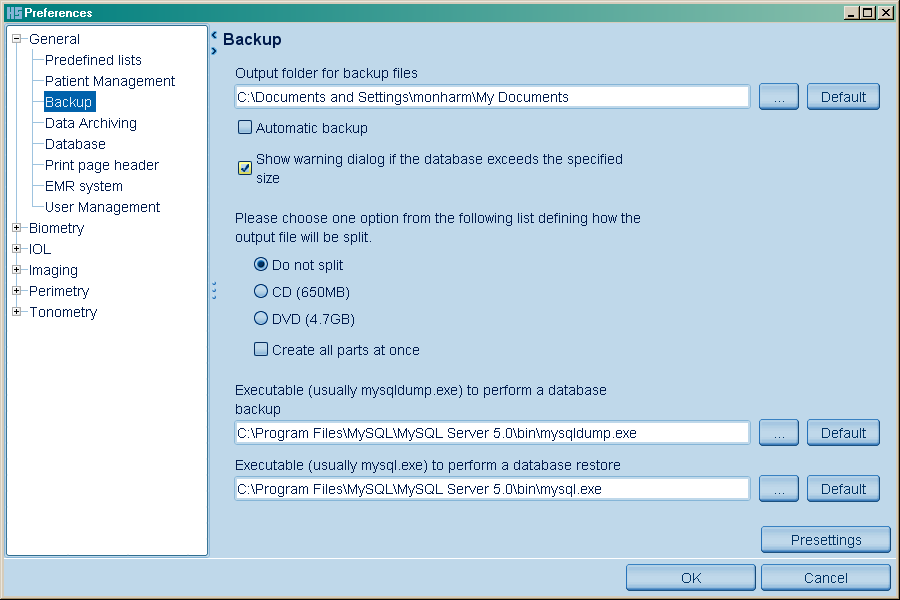
Backup
This function lets you adjust the data-backup parameters.

Output folder for backup files:
This function defines the storage location for the backup file (or files, if the backup file is split for saving to CD / DVD).
Automatic Backup:
If this option is selected, EyeSuite automatically creates a backup copy of the database whenever the application is closed. The copy is saved to the destination directory previously defined for data backup purposes.
CAUTION: As the biometric database can become very large (several gigabytes in size), you should not use this option in conjunction with the LENSTAR LS 900. Use automatic export of all measurement and analysis data to a network-drive instead to secure data.
Show warning dialog if the database exceeds a certain size
EyeSuite displays a warning message whenever the database becomes so big that it would be difficult to back it up without the use of an external data-storage medium.
Please choose one option from the following list defining how the output file will be split.
Do not split:
Select this option if the backup file is to be saved to a server or external hard disk.
CD (650MB)
Select this option if the backup file is to be saved to CD-ROM.
DVD (4.7GB)
Select this option if the backup file is to be saved to DVD-ROM.
Executable (usually mysqldump.exe) to perform a database backup
This function defines the program to be used for data backup.
Executable (usually mysql.exe) to preform a database restore
This function defines the program to be used for data recovery.
Pressing the "Default" or "Presettings" keys resets all parameters to their factory settings.
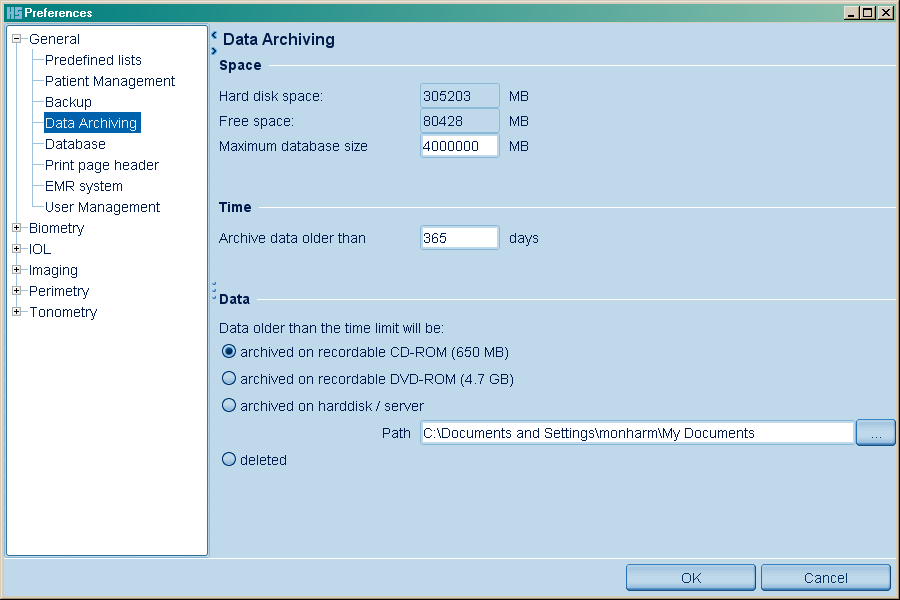
Data Archiving
This function lets you configure the data archiving / compression parameters.

Space Harddisc space:
Indicates the size of the hard disk used.
Free space:
Indicates the amount of hard-disk space currently available for data storage.
Maximum size of database:
This function lets the user decide how big the database should become before it is archived. The recommended value is approximately 15GB (corresponding to about 500 left/right eye examinations). As soon as this default value is reached or exceeded, the user is recommended to archive the data at the next start-up of EyeSuite. This can also be done at a later time, or carried out manually. The data-archiving procedure is described in the section entitled "Data archiving / compression".
Time Archive data older than:
Identifies the data to be archived when the database reaches the size defined under "Maximum size of database".
Data:
This function defines how the data defined using the "Space" and "Time" functions are to be treated when data archiving / compression takes place:
Data older than time limit:
Archived on Recordable CD-ROM(650 MB)
If you select this option, the data to be archived is split into files with a size of maximum 650 MB for saving to an external CD. The data must then be burnt manually to CD. The data is saved to the directory defined under "path".
Data archived in this way can be re-imported to the system at any time.
Archived on Recordable DVD-RW (4.7 GB)
If you select this option, the data to be archived is split into files with a size of maximum 4.7 GB for saving to an external DVD. The data must then be burnt manually to DVD. The data is saved to the directory defined under "path".
Data archived in this way can be re-imported to the system at any time.
Archived on Hard Disk / Server
Select this option to save the data as a single undivided package to the directory defined under "path". Select this option if the data is to be saved to a server or external hard disk.
Path:
This function defines the path to which the archive files are to be saved.
Deleted:
Select this option to compress the data by deleting the raw measurement data, keeping the results displayed in the measurement overview.
This function irretrievably deletes the raw data corresponding to all measurements selected for archiving (A-scans, keratometry images, pupillometry images and white-to-white measurement images). Patient data, measurement overviews and IOL calculations are retained however.
Database
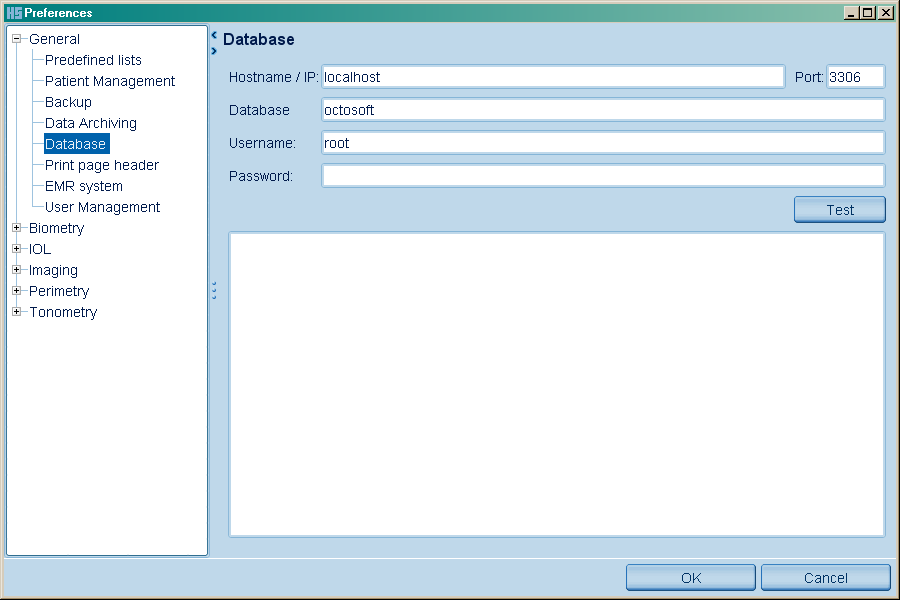
This function is used to configure the settings to connect to the database (local or remote). The values shown correspond to a standard local installation on a single computer:
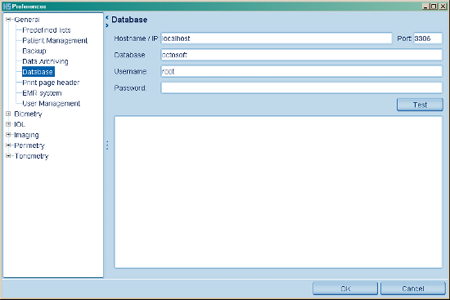
A network installation requires the following information on the computer on which the EyeSuite MySQL database is running:
Hostname / IP:
The name (hostname) or IP address of the server. It is recommended to work with the name of the server as this avoids problems if the server IP address is dynamically assigned.
Port:
The port used for access to the database. Default is 3306.
Database:
Name of the database created on the server for the use of EyeSuite.
Username:
Name of the user authorised to access the EyeSuite database kept on the server.
Password:
Password to be entered by the user authorised to access the EyeSuite database kept on the server.
Test:
Press the "Test" button to check the information entered to provide a connection to the server.
Print Page Header
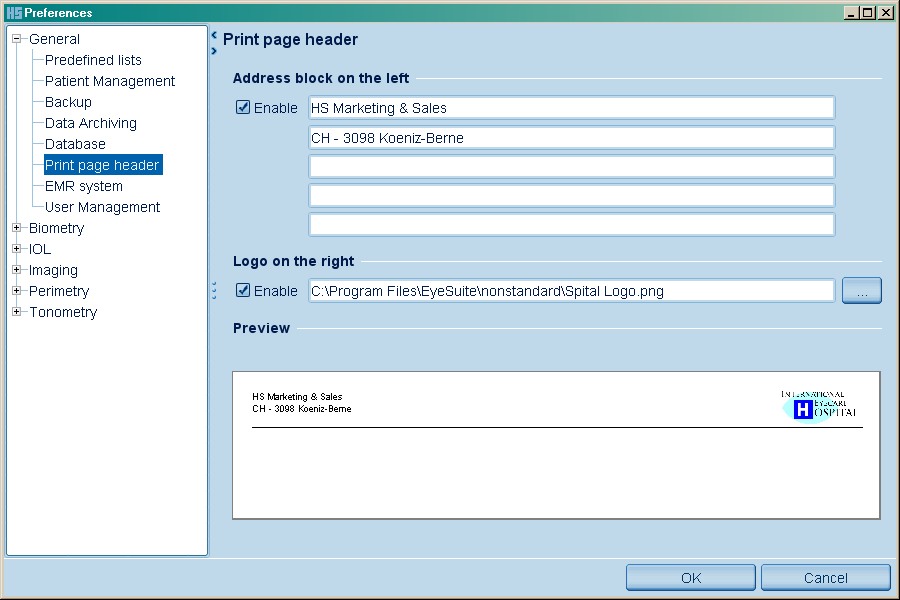
This feature lets you personalize the header line for EyeSuite printouts allowing to add your own address and/or logo. The logo is automatically scaled depending on the number of used lines in the header. Click on the "Enable" button to make the address and logo, which you have entered, appear on your printouts. The window displayed below gives you a preview of how the header will look like on the printouts.

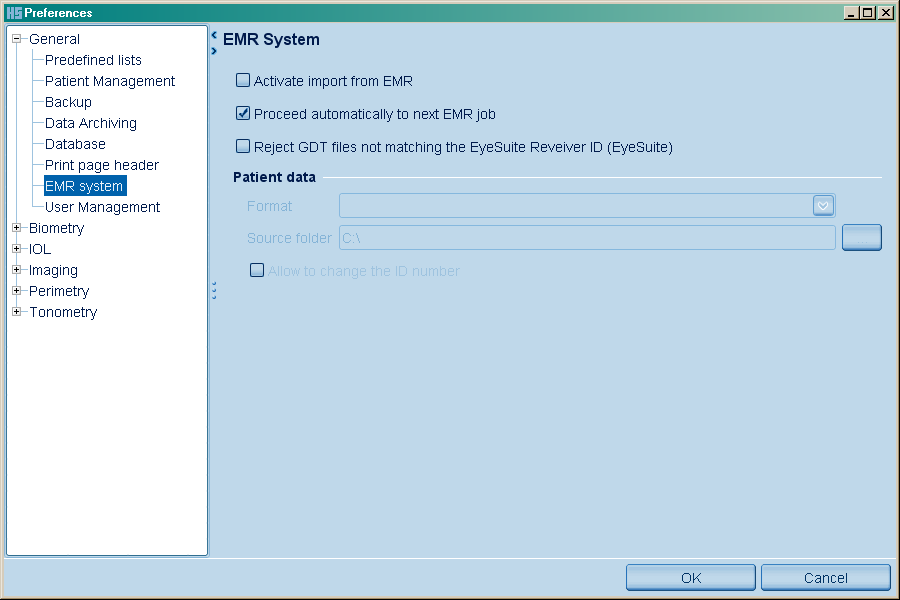
EMR System
Please refer to the separate EMR guide for setup instructions.

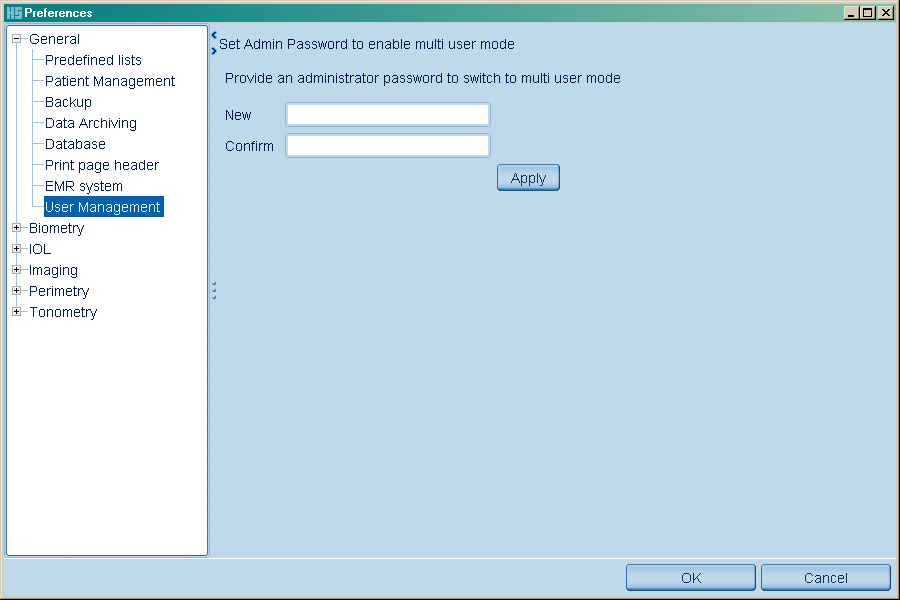
User Management
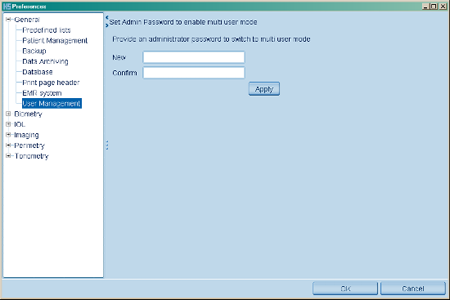
This table allows the user to set a password for the EyeSuite Administrator. Doing so enables EyeSuite multi-user mode.
Once EyeSuite multi-user mode has been enabled, it cannot be turned off again. By simply reverting EyeSuite to single user mode, personalized data would be lost. Still, it is possible to run EyeSuite in multi-user mode similar to single user mode by creating a user with administrative rights and no password and setting this user as the default user.
Once turning on the multi-user mode, EyeSuite requires a login and the definition of functions/access rights for each user to work properly. We recommend working with this feature only in a biometry multi-user environment.
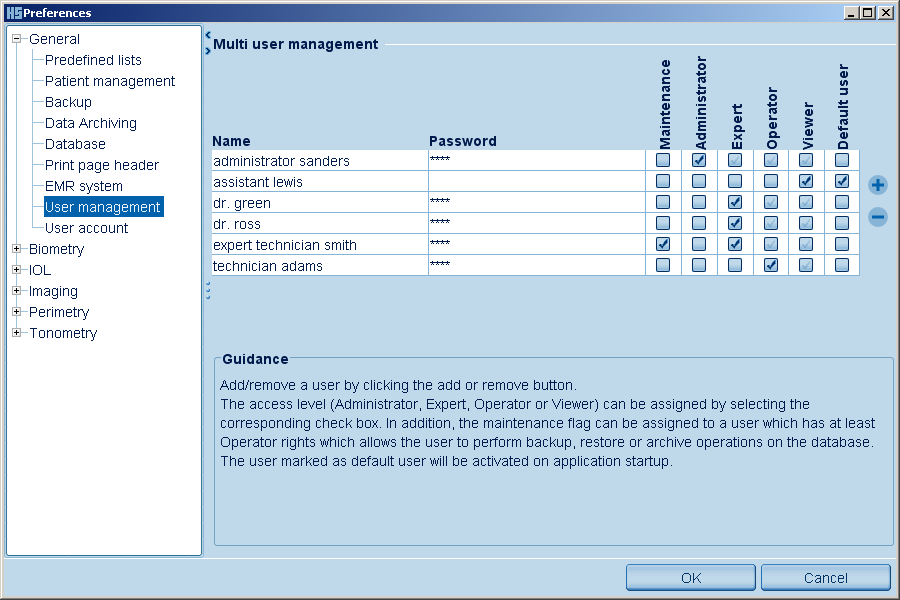
After multi-user mode has been enabled, the section user management may be used to create, handle and delete user accounts.
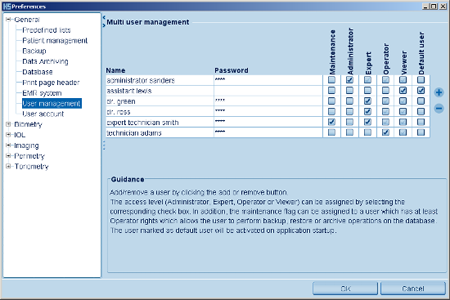
To create a new account press: 
To delete a user account press: 
Please review the matrix below to learn about the individual permissions the individual user types get.
Permissions Matrix
| Function |
Administrator |
Service |
Expert |
Operator |
Viewer |
Maintenance |
| Create, edit and delete a patient |
x | |
x |
x | | |
| Viewing an examination |
x |
x |
x |
x |
x | |
| Creating and deleting an examination |
x | |
x |
x | | |
| Manipulate / edit an examination |
x | |
x | | | |
| Move an examination to an other patient, merging of patients |
x | |
x | | | |
| Import and export of patients and examinations |
x | |
x | | |
x |
| Print |
x |
x |
x |
x |
x | |
| Setting print properties for default printer |
x |
x |
x | | |
x |
| Recover deleted data sets |
x | |
x | | |
x |
| Empty the recycle bin |
x | |
x | | |
x |
| Database backup |
x |
x |
x | | |
x |
| Database restore |
x |
x | | | | |
| Database archiving |
x |
x |
x | | |
x |
| Database health check |
x |
x |
x | | |
x |
| Database conversion to InnoDB (to be done only once) |
x |
x | | | | |
| Managing options (Dongle Codes) |
x |
x | | | | |
| Creating reports |
x | |
x | | |
x |
| Access to preferences |
x |
x |
x | | | |
| Access to user management |
x |
x | | | | |
"Maintenance" is a function which might be added to any defined user, if the user has at least "Operator" permissions
User Account
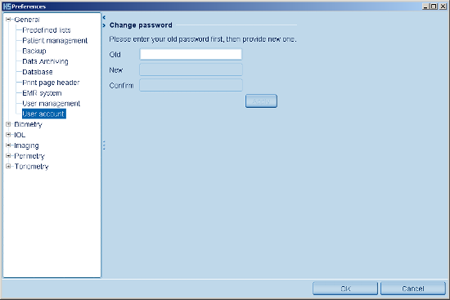
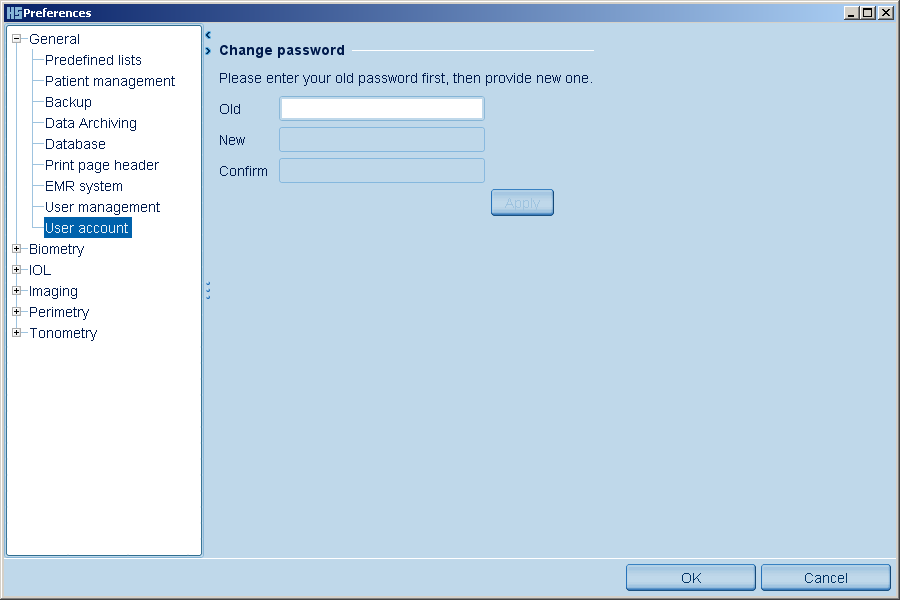
If multi-user mode has been activated you may change the password for the EyeSuite "admin" here. In single user mode of EyeSuite, you may not see this section.
|