Haag Streit LENSTAR® - Program Functions
Archive Data
Tools -> Database -> Archiving
Click on images to enlarge for better viewing.
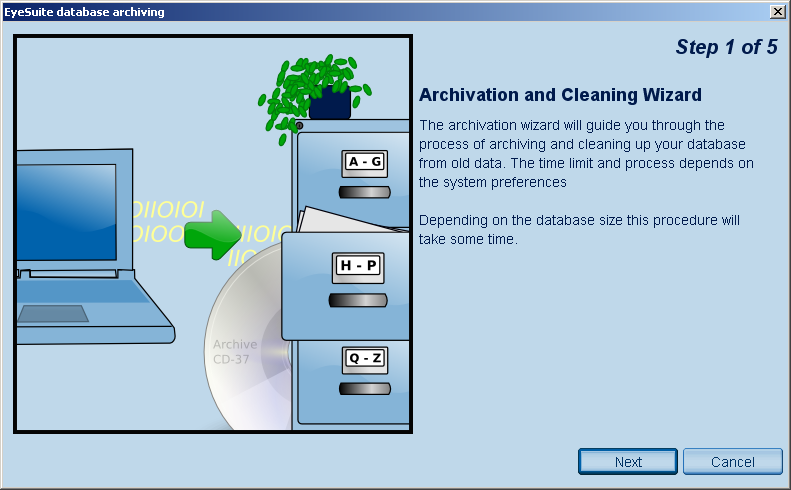
Click on Tools -> Database -> Archiving in the menu to manually compress and archive data.
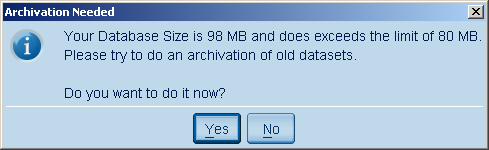
The data-archiving function is called up automatically when EyeSuite is started, if the database has reached or exceeded its configured maximum size. EyeSuite will then start by displaying the following dialog:
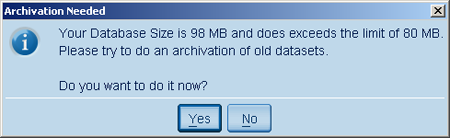
You may continue working without archiving the data. The dialog will reappear the next time EyeSuite starts up.
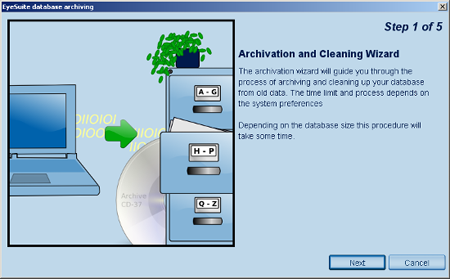
If EyeSuite is running in multi-user mode you need at least expert permissions to perform data archiving.
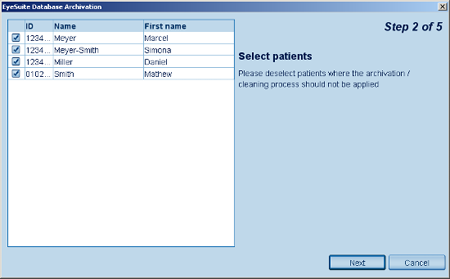
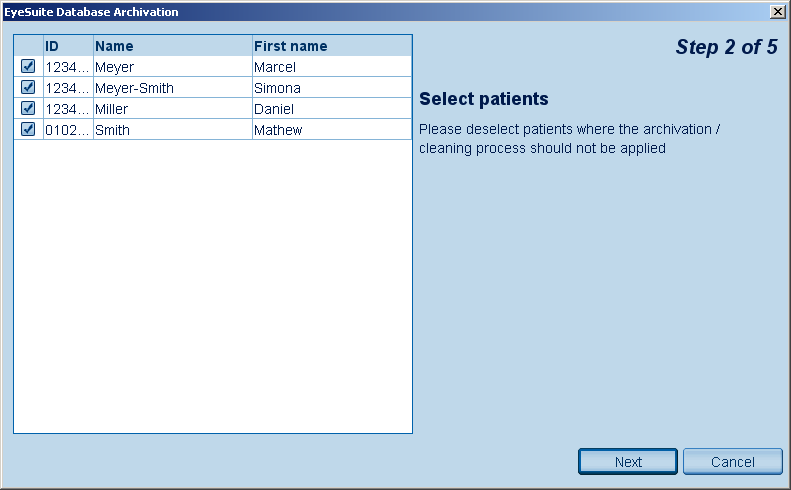
In the next step, you can exclude patients from being archived.
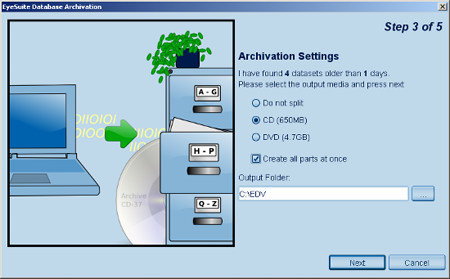
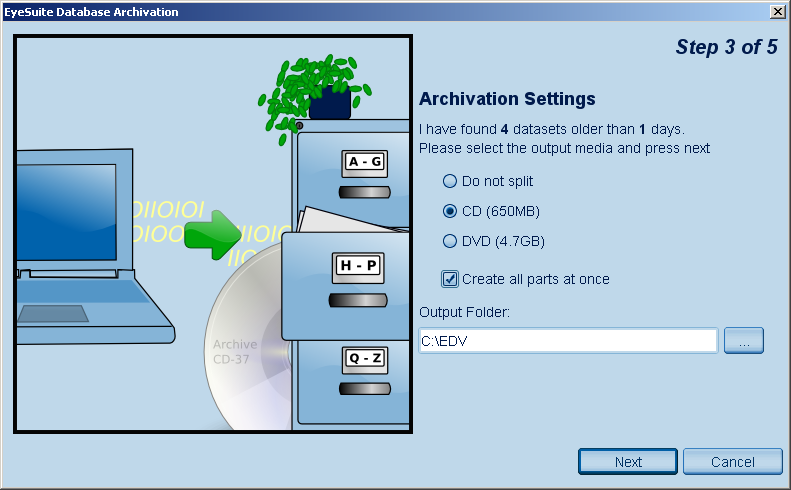
This function lets you select the path where the archive file will be saved as well as the save format (split into smaller files for saving to CD or DVD, or as a single file for saving to server or external hard disk); or you can simply use the preset configuration.
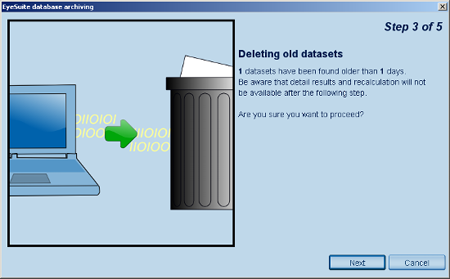
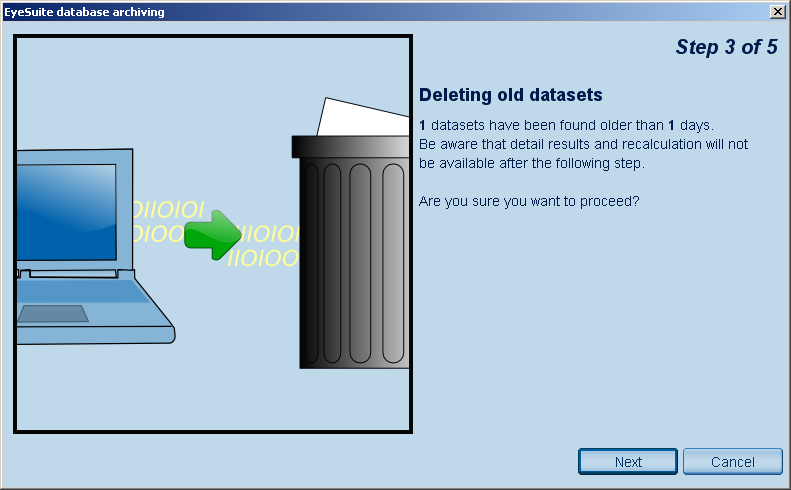
If the preferences for archiving have been set to "Delete", Archiving is simply asking if the data sets matching the archiving criteria should be irreversibly deleted.
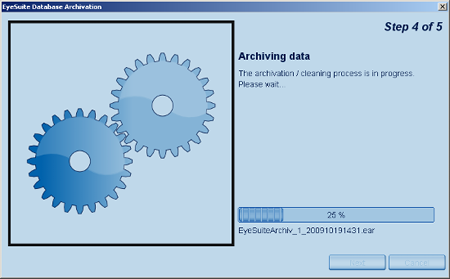
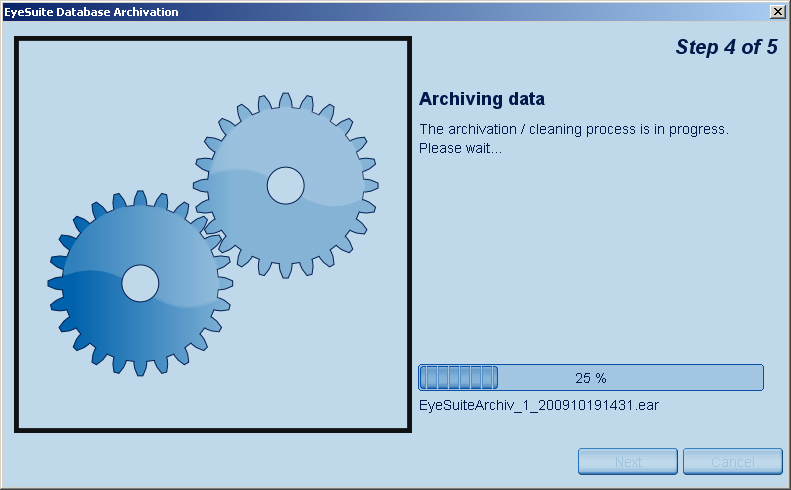
The archiving process may take some time, as the database file can be several gigabytes in size.
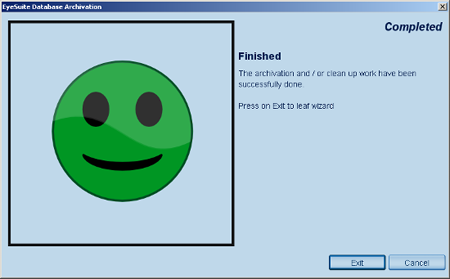
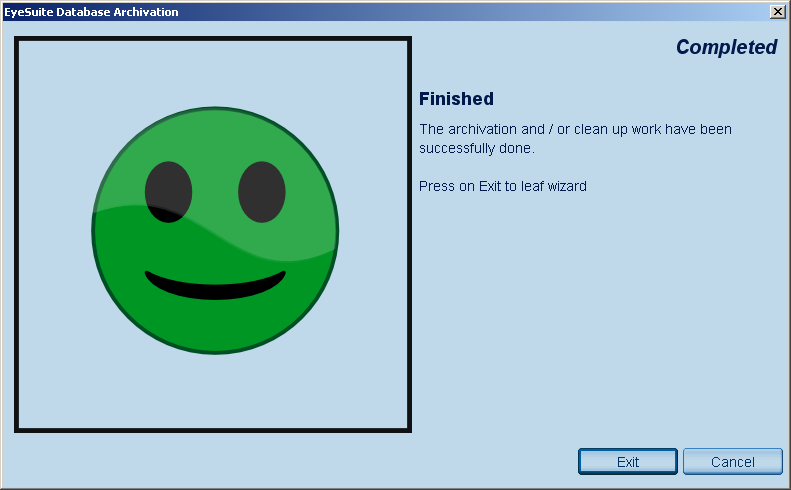
The data-archiving process completed successfully. If you have selected the split-file option for saving to CD or DVD ROM, the resulting files must now be saved manually to the corresponding storage medium, and then deleted from the hard disk. Clearly mark the CD / DVD with the name of the archive file to make it easier to recover data records at a later time.
CAUTION: If you have selected the split-file option for saving to CD or DVD ROM, you should wait for the archiving process to end, copy the resulting files to the corresponding data storage medium, and then delete the files from the computer. Clearly mark the CD / DVD with the name of the archive file to make it easier to recover data records at a later time.
|