Haag Streit LENSTAR® - Program Functions
Backup Database
Tools -> Database -> Backup
Click on images to enlarge for better viewing.
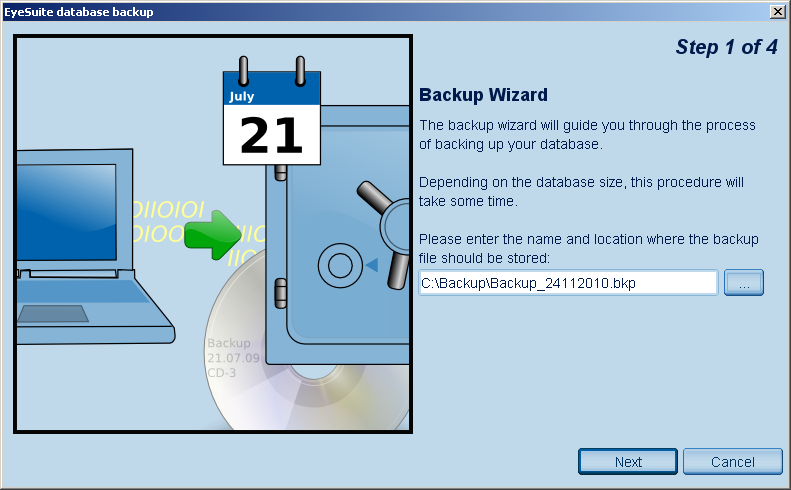
Click on Tools -> Database -> Backup in the menu to create a backup copy. The user should ensure that the backup copy of the database is kept in a safe place. EyeSuite starts the backup wizard dialog. In multi-user mode, you need to have at least expert or maintenance permissions to create a backup of a database.

This dialog is used to establish where the backup is going to be saved and how it is going to be named. All EyeSuite backup files have the extension .bkp
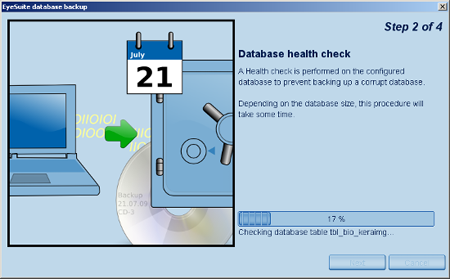
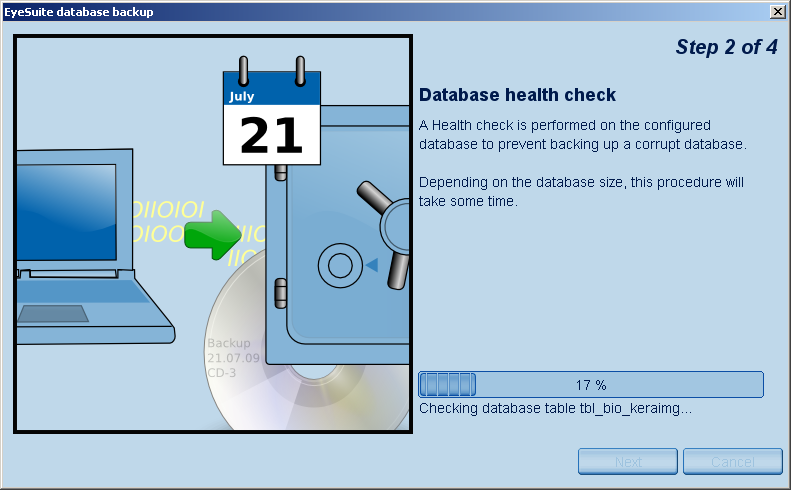
To ensure the data on the backup is consistent, EyeSuite performs a data base health check prior to the execution of the backup functionality.

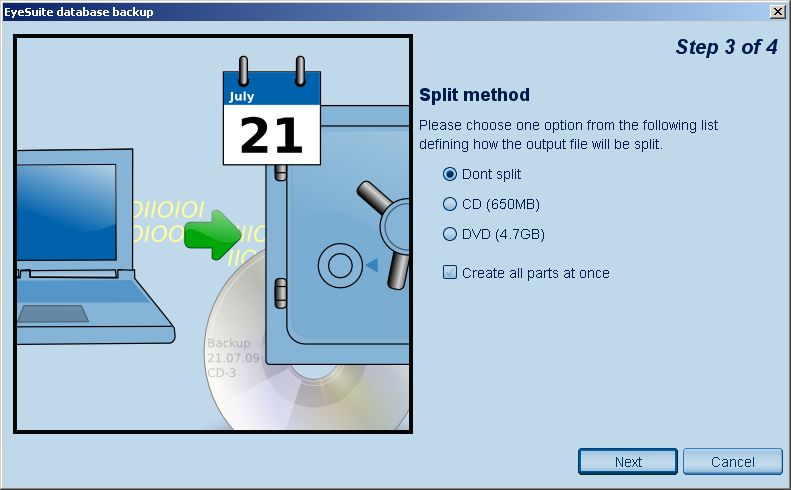
This function lets you decide whether to save the backup copy as a large single file or various smaller files. The "Do not split" option is used when saving the backup copy to a server or external hard disk. The other two data-packet options are used when saving the backup copy to a 650 MB CD-ROM or 4.7 GB DVD-ROM respectively.
You can choose whether to save all packets at once with the "Create all parts at once" option, or make the creation of each part dependent on user confirmation. This function is useful when there is only limited space on the hard disk, leaving insufficient capacity to back up all data at once.
CAUTION: When using this function, the user should ensure that the backup copy of the database is kept in a safe place!
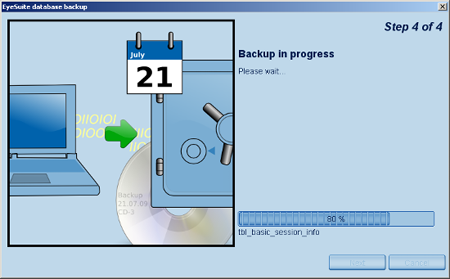
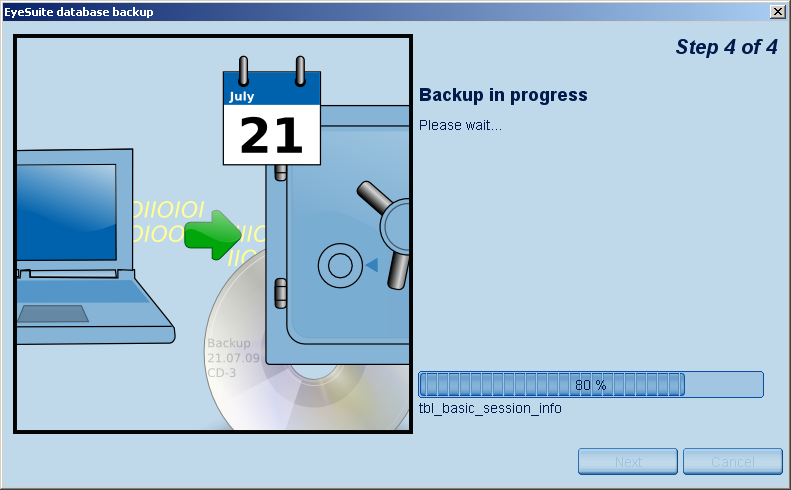
The creation of the backup copy may take some time, as the database can be several gigabytes in size.
The backup process does not include the images from the EyeSuite Imaging application stored in c:\ImagingPictures (if default storage location for the images has not been changed in the imaging settings of EyeSuite). Please copy the images manually to a backup media.
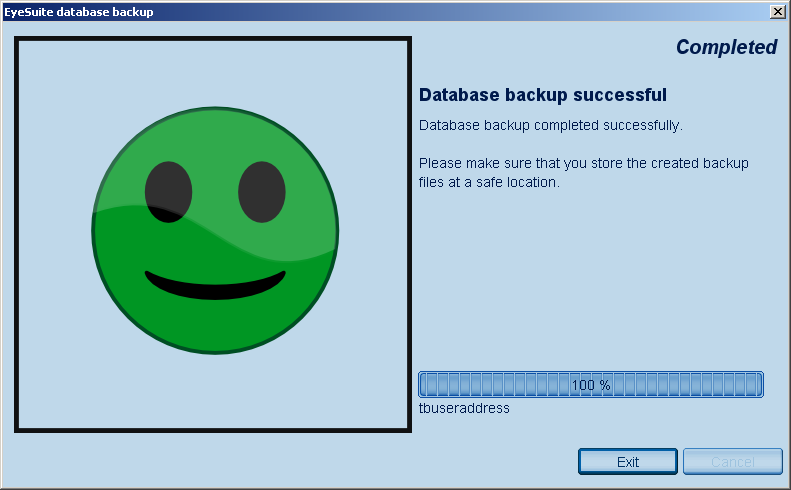
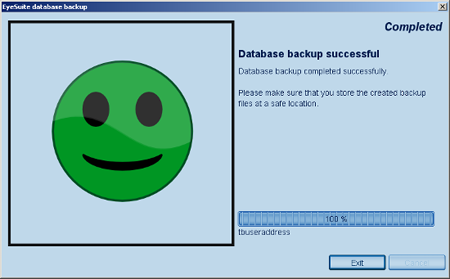
A backup copy of the database has been successfully created.
The user should ensure that the backup copy of the database is kept in a safe place!
|