Haag Streit LENSTAR® - Operation
mesa-arizona/Data Management
Click on images to enlarge for better viewing.
Selecting & Entering Patients:
Selecting Existing Patient
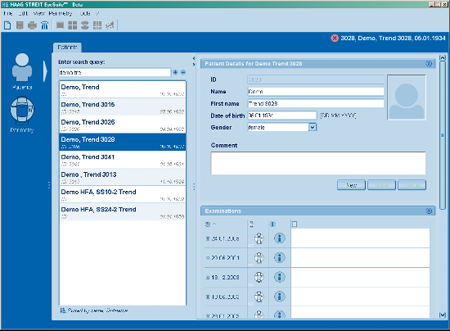
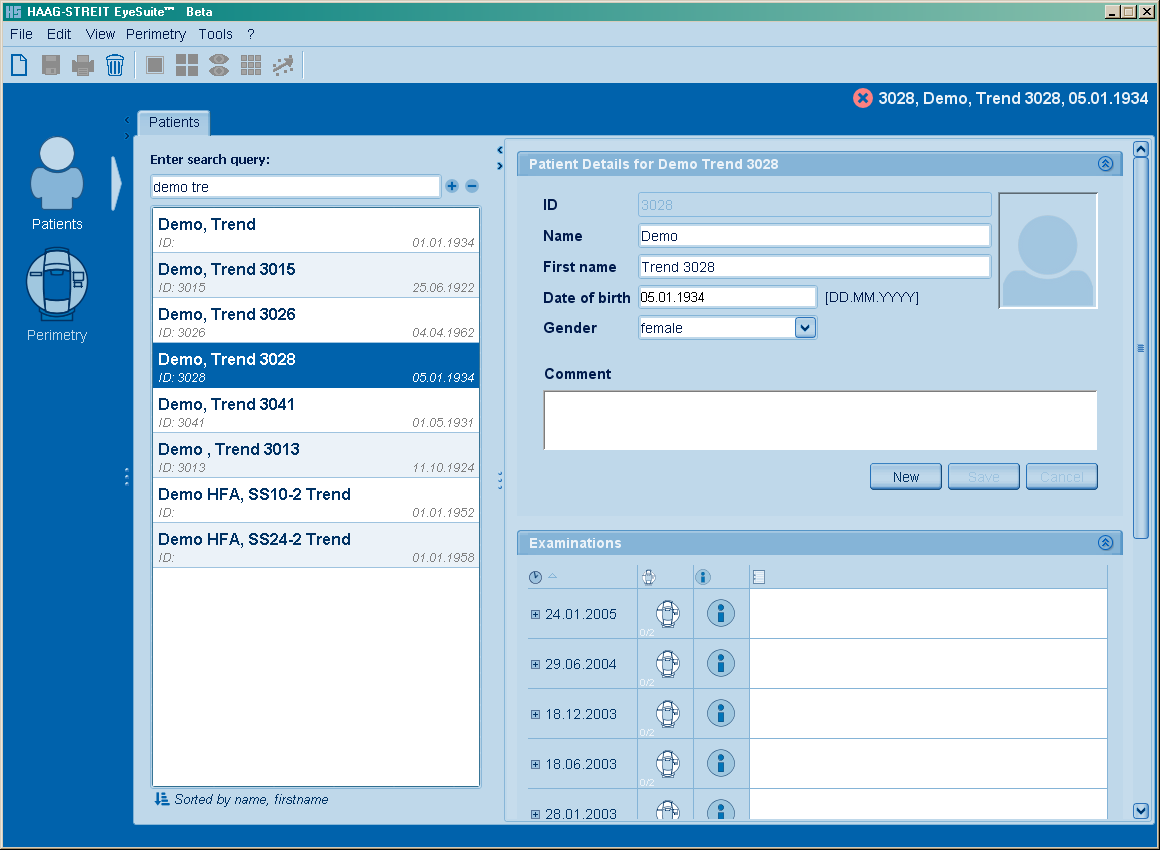
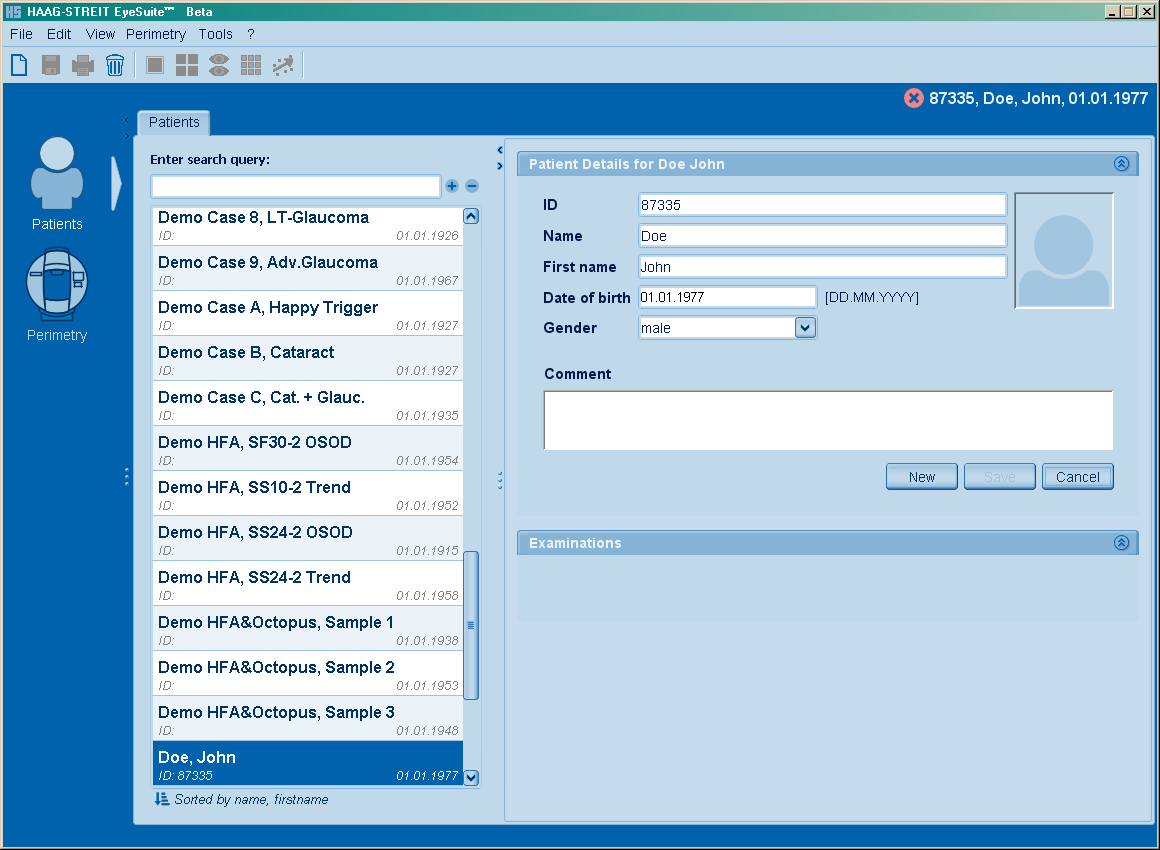
- Go to the "Patients" section (Top left icon)
- Enter the first characters of the family name and/or first name into the search field "Enter search query"
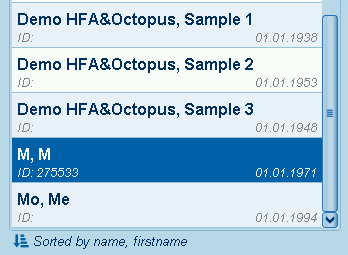
- The matching names will show up
- Single click on the desired patient name: The entry with all examinations will be opened and the examination list is shown on the right.
Entering New Patient
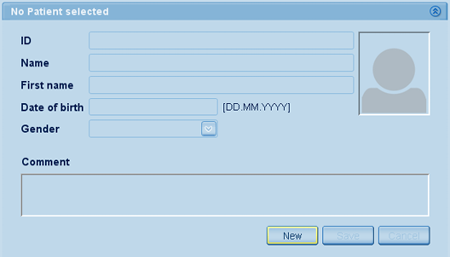
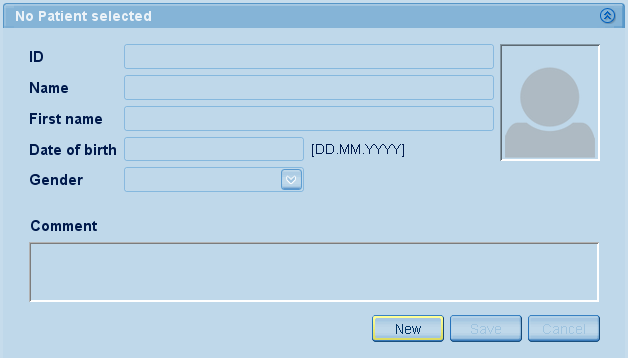
- Go to the "Patients" section (Top left icon)
- Click on "New"
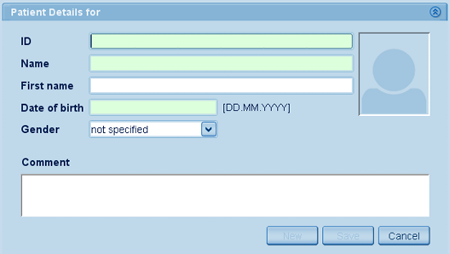
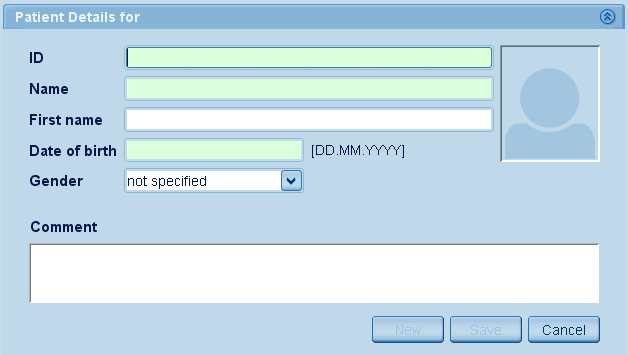
- Mandatory fields appear green, voluntary fields white.
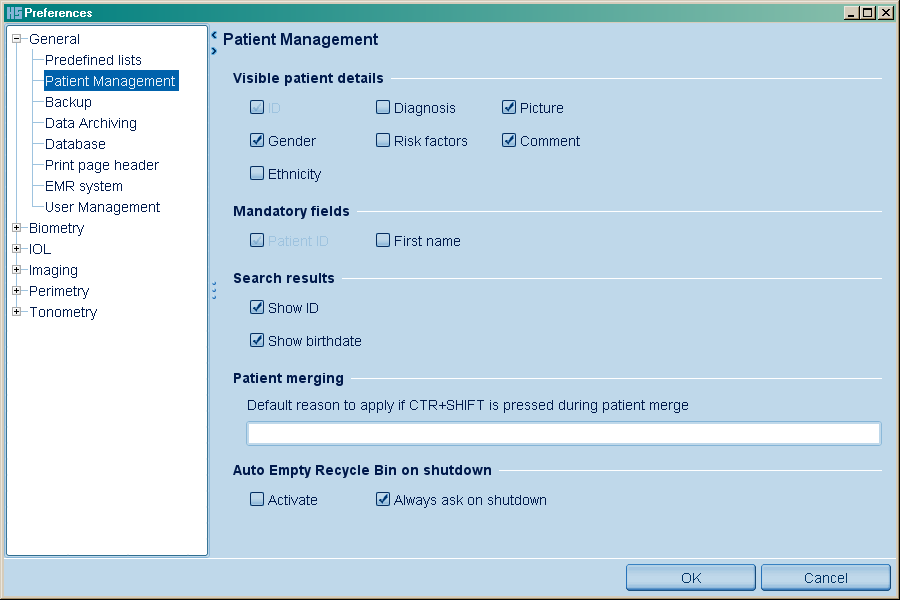
- If you would like to see more or less entry fields (e.g.. ethnicity, diagnosis, ...) you can configure this screen in the EyeSuite preferences dialog: Further information in the next section.
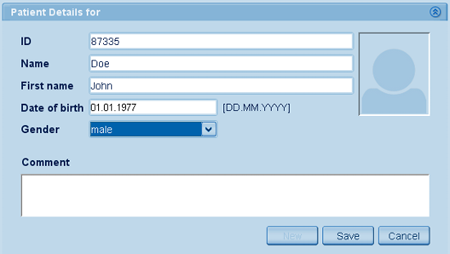
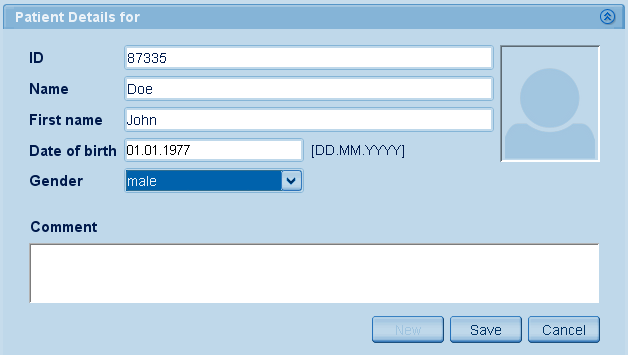
- Enter at least the required information and click "Save"
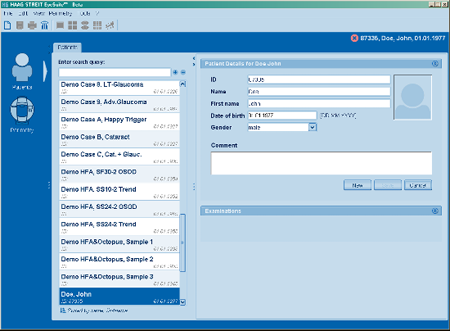
The patient appears in the patient list and is shown as the active patient in the upper right corner of the window.
Adapting Patient Details and Entry Section
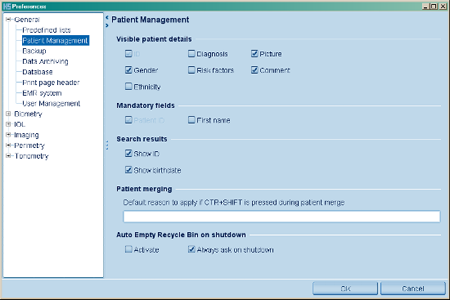
In order to configure the visible fields of patient details as well as changing the definitions for mandatory fields, go to the menu "Tools", "Preferences", "General", "Patient management" and confirm changes with "OK".
Merging Mistyped Patient Entries / Tests Under Wrong Name
The following functions are only available for Perimetry examinations.
Merging Patient Entries
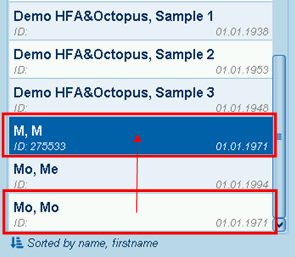
Especially when merging databases or importing visual fields from different instruments it is possible that the same patient has multiple entries.
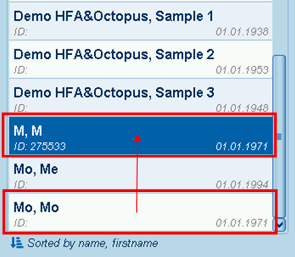
In order to merge these entries, drag the mistyped entry over the correct entry.
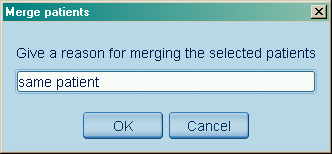
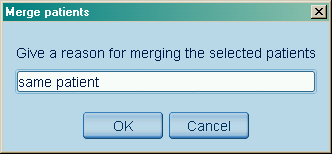
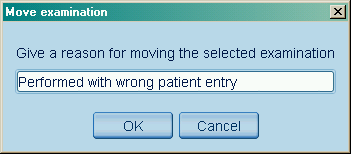
A window pops up, asking for a reason. Click "Cancel" if you moved the patient by mistake. Enter a reason or abbreviation if you want to continue.
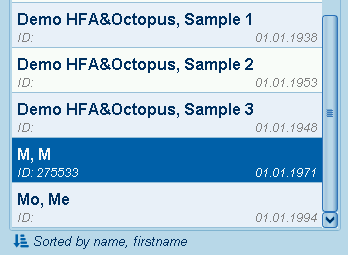
As a result, the mistyped entry is fully integrated into the correct entry and then deleted.
Moving Visual Field Tests
If a patient's visual field is examined using the wrong name, it is possible to move it to the correct patient entry.
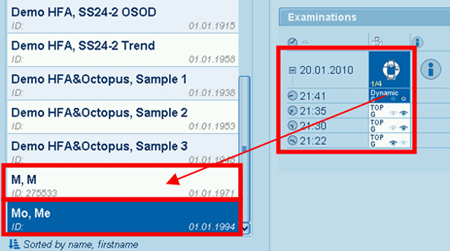
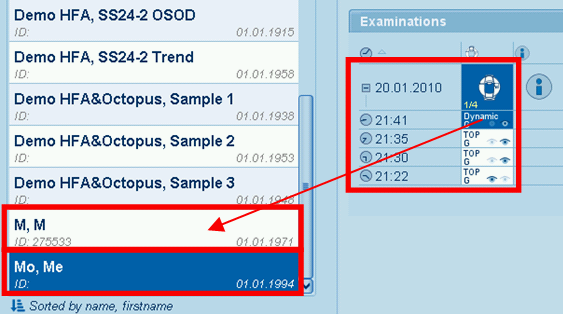
In the examinations section, click on the "+" sign preceding the examination date, then drag the respective visual field to the correct patient name.
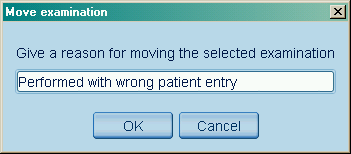
In the pop up window, provide a reason for moving the examination or click "Cancel" if you moved the examination by mistake.
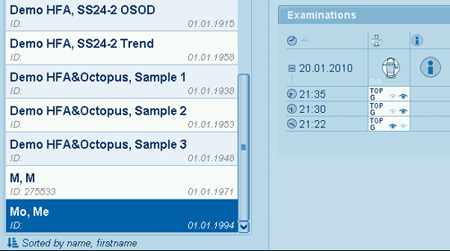
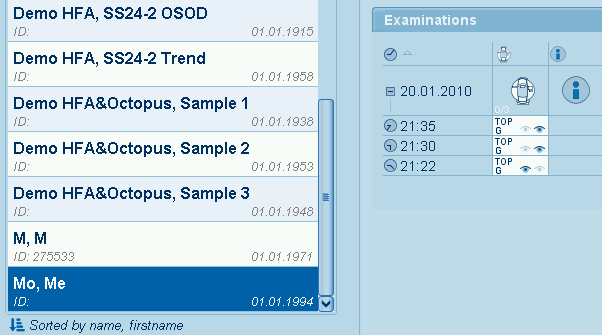
The examination is removed from the original patient entry and assigned to the new patient entry.
|